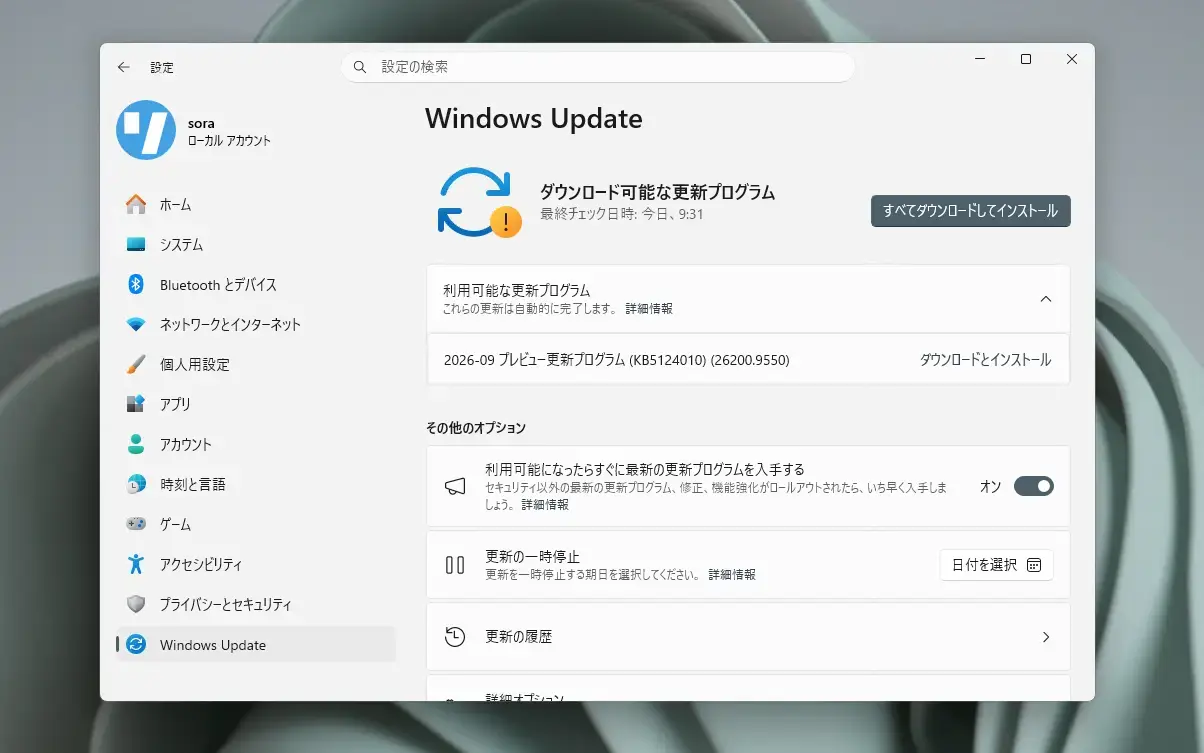
Microsoftは9月22日(現地時間)、Windows 11 Version 25H2/24H2用のプレビューアップデートKB5124010を公開しました。
オプション扱いの更新プログラム(プレビュー版)で、多数の不具合が修正されています。
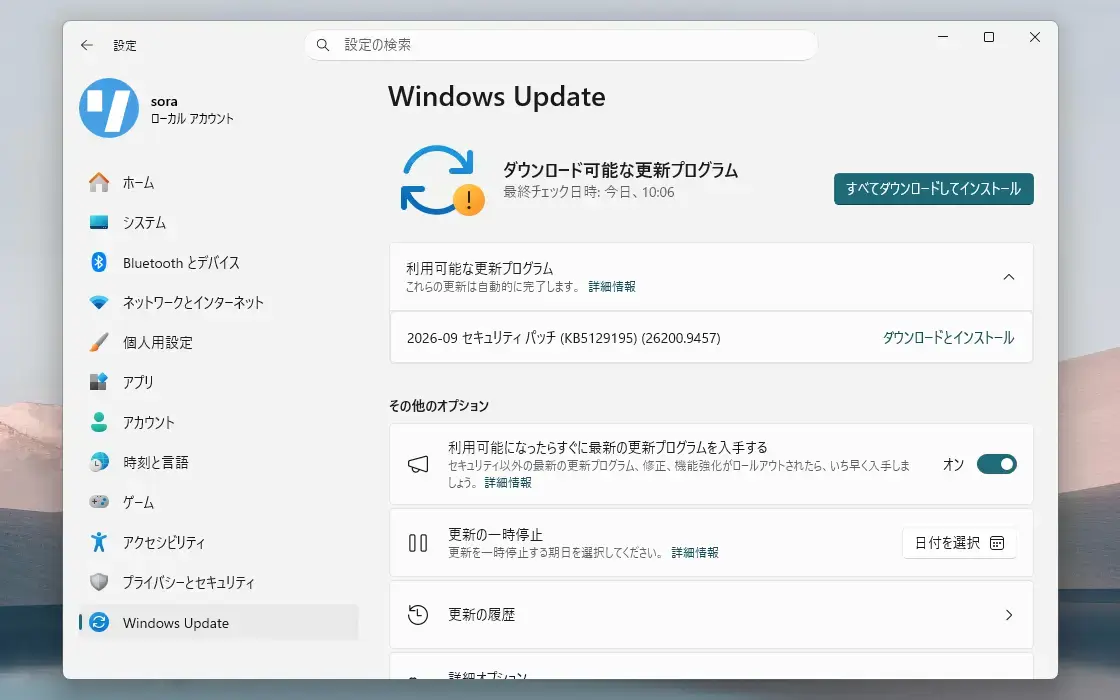
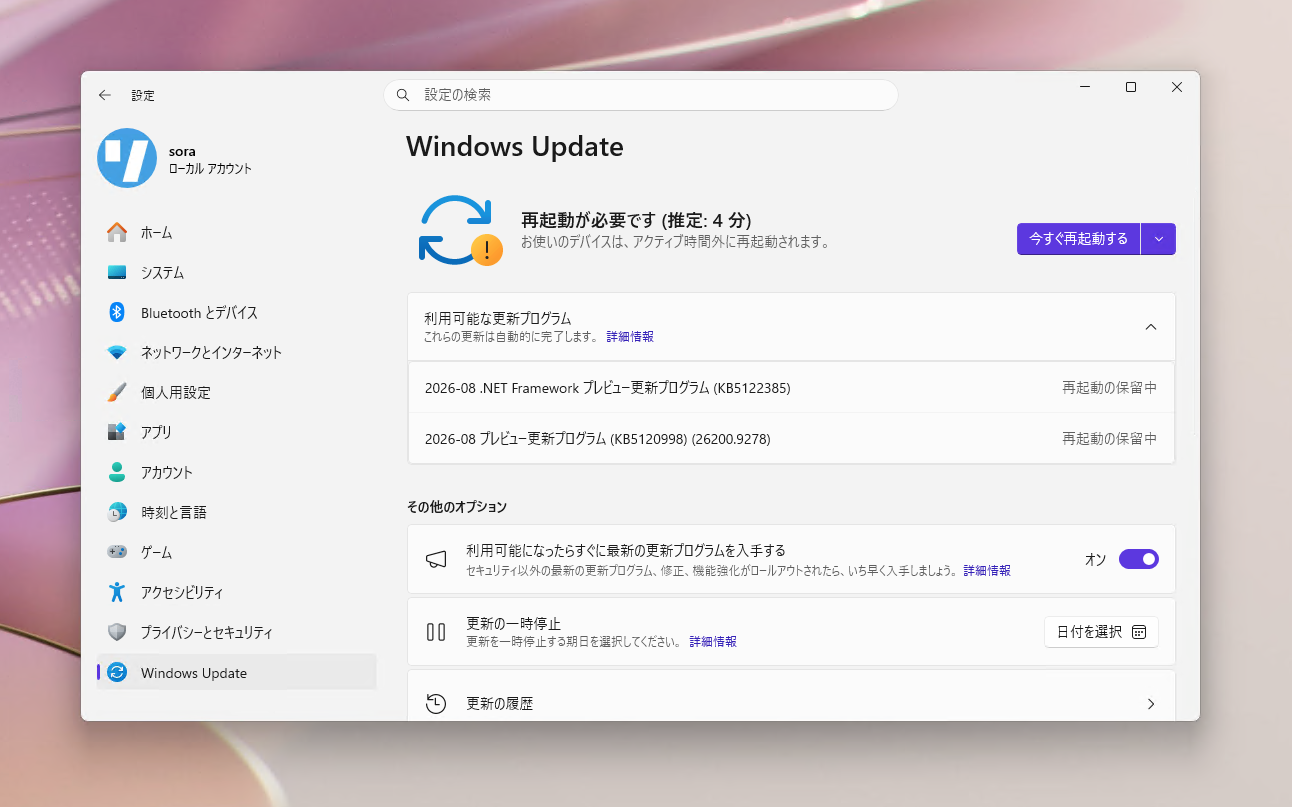
Windows Updateの「更新プログラムのチェック」を利用するか、Microsoft Update Catalogからファイルをダウンロードすることで、手動でインストールすることができます。
September 22, 2026—KB5124010 (OS Builds 26200.9550 and 26100.9550) Preview
Windows 11 Version 25H2/24H2用の更新プログラムKB5124010では、ファイルエクスプローラーの改良や、Emoji 17.0への対応、個人設定の信頼性向上、Bluetoothの安定性向上などが行われています。また設定でCopilotキーを右CtrlキーやContext Menuに割り当てることができる新しい設定が追加されています。
リリースノートは以下の通りです。
Gradual rollout
[File Explorer]
New! This update adjusts how the preview pane handles files downloaded from the web. For HTML files, a new Preview anyway button lets you acknowledge the warning and preview the file. Non-HTML files, such as PDFs, are now previewed automatically.
New! File Explorer Home now preserves the state of sections (expanded or collapsed), so you can pick up where you left off.
New! This update improves the reliability of thumbnail previews for cloud files in the Details pane. The pane has also been reorganized so file properties are easier to find and review at a glance.
New! The update addresses an issue that could clear the address bar contents when entering edit mode by clicking near the right side of the address bar.
[Emoji]
New! This update adds support for Emoji 17.0, including new emoji such as distorted face, fight cloud, and hairy creature. To insert them, press Windows + . to open the emoji panel.
New! This update also refines the design of several existing emoji for better consistency across platforms, including saluting face, face with peeking eye, goose, lotus, and kissing cat.
[Widgets] New! This update introduces the Tips widget, which provides short, helpful guidance about Windows features. To add it to your Widgets board, open the board, select Add widgets, and then choose Tips. To add it to your lock screen, go to Settings > Personalization > Lock screen and add Tips to your lock screen widgets.
[Personalization] This update includes a variety of improvements to desktop background experiences.
This update improves the reliability of the Personalization > Background page in Settings.
This update adds support for using DIB image files as desktop backgrounds.
This update improves reliability of desktop slideshow transitions on newly created accounts.
This update improves resolution of previews when selecting a desktop background in Personalization > Background.
This update improves desktop background preview display in Settings for users with portrait mode monitors.
This update improves reliability of processing desktop wallpaper changes when they happen in quick succession.
This update adds support for using slideshow wallpapers with multiple desktops, so that it won’t automatically switch you back to Picture.
[Bluetooth]
This update contains several enhancements to improve reliability and experience when connecting to and using Bluetooth devices:
During voice calls, the Windows shell volume flyout now appears when adjusting the volume of a Bluetooth Classic Audio accessory via the volume controls on the accessory, providing visual feedback of the new volume level.
This update improves the accuracy of the connection state displayed by Windows for accessories that have disconnected from the PC.
This update improves stability of the Bluetooth and devices page in Settings when managing Bluetooth and audio devices.
This update resolves an issue where the Bluetooth radio could be turned off, but the state of the radio control toggle in the Bluetooth and devices page in Settings shows as on.
This update improves Bluetooth audio stability and compatibility:
This update improves microphone compatibility with certain Bluetooth Classic audio accessories.
This update resolves an issue that could result in a crash (error code 0x139) while streaming Bluetooth audio.
This update improves reliability and performance with LE Audio accessories.
This update improves the reliability of shared audio.
[Accessibility]
New! This update introduces Open apps maximized, an accessibility setting that automatically maximizes app windows as they open. It removes a bit of everyday friction whether you use a screen reader or magnification, work in tablet mode, or simply prefer a consistent, full-screen workspace. To turn it on, go to Settings > Accessibility > Visual effects and turn on Open apps maximized.
This update improves navigation of the Bluetooth quick settings page when using keyboard input, gamepad input, or Narrator.
[Magnifier]
New! This update brings a modernized visual refresh to the Magnifier taskbar.
Updated icons Magnifier's toolbar icons align with Windows 11 visual design, giving the tool a cleaner, more modernized feel.
Refined spacing and padding The padding is adjusted with spacing across the toolbar for a more polished, consistent layout.
Views, zoom controls, keyboard shortcuts, and Read Aloud all behave exactly as they did in earlier versions.
[Settings]
This update improves the reliability of Settings when interacting with the contents of the Settings > Bluetooth & Devices > Printers & Scanners page.
This update updates Settings > Apps > Installed apps to show the version number at the top level for packaged apps, as it already does for other apps.
This update improves the time picker control in Settings so that it reflects your preferred time format when you switch between 12-hour and 24-hour time. This applies in places such as setting active hours and scheduling Night light.
This update improves persistence of the Allow multiple apps to use camera at the same time option in Settings > Bluetooth & Devices > Camera settings.
[Touchpad]
New! Additional gesture controls for precision touchpads are available in Settings > Bluetooth & devices > Touchpad:
Single-finger scrolling — Scroll vertically with one finger starting from the left or right side of the touchpad.
Automatic scrolling — Keep scrolling without lifting your fingers by moving them near the edge of your touchpad while scrolling.
Previously, gesture controls for scroll and zoom speed and accelerate scrolling were released in the July 2026 update (KB5101684).
[Copilot key] New! This update introduces a new Windows 11 setting that lets you remap the Copilot key to function as the Right Ctrl or Context Menu key, helping preserve familiar keyboard shortcuts and accessibility workflows. For more information, see Understand updates to the Copilot key on Windows devices.
[Camera roll]1 New! This update introduces Camera roll backup in Settings, helping eligible users protect their photos with OneDrive. You can turn on the feature from the Settings Home or Accounts page and complete setup on a mobile phone using a QR code.
[Fonts]
New! This update adds support for the Garay and Beria Erfe scripts to the Ebrima font, the first Microsoft font to support both. Garay was encoded in Unicode 16.0 and Beria Erfe in Unicode 17.0.
New! This update also refines the Adlam glyph designs in Ebrima to align with the current Unicode standard and improve consistency.
[Windows Recovery (WinRE)]
- New! This update adds a recovery remote management plug-in for extending WinRE management capabilities for MDM providers. For more information, see Recovery Remote Management Overview.
[Kiosk mode]
The Windows + Tab keyboard shortcut is now disabled when using a restricted UX kiosk.
The Windows + A and Windows + C keyboard shortcuts are now disabled when using single-app kiosk mode.
[Windows Backup]
- PC-to-PC Migration is no longer available. This feature, introduced through a phased rollout, previously allowed you to transfer files and settings directly from your previous PC when setting up a new Windows PC. To back up and restore your files, settings, and other supported items when moving to a new PC, use Windows Backup. For more information, see Backup and restore with Windows Backup.
[Power and battery] This update improves display and performance in certain scenarios where a plugged-in laptop incorrectly detects a transition from AC power to battery power.
Normal Rollout
[Camera] This update addresses an issue where the built-in camera might stop working in the Camera app and other apps that use the camera.
[File History] This update addresses an issue where File History might fail to back up or restore files to an external drive or network location. Affected devices might incorrectly display a “Reconnect your drive” message even when a compatible backup drive is connected and working properly.
[System Monitor (Sysmon)]
- This update fixes an issue with header validation for executable files. Truncated or malformed files could cause unpredictable memory use and result in unreliable tampering detection.
- This update fixes an issue with the Sysmon file system filter driver. If the archive directory failed to open during file monitoring, closing an uninitialized handle could cause a stop error.
- This update fixes an issue with process tampering detection. Sysmon incorrectly generated Event ID 25 alerts for the Windows Session Manager (smss.exe) process.
既知の不具合
更新プログラムには以下の2件の既知の不具合が存在します。
Domain-joined devices might lose their secure trust relationship with the domainSymptoms
After installing the September 8, 2026, Windows security update (KB5124008), or later updates, some Credential Guard protected machine accounts might lose their secure channel with an on-premises Active Directory (AD) domain. Users might then be unable to sign in interactively with valid domain credentials and might receive a message stating that the trust relationship between the device and the domain failed. Offline sign-in using previously cached credentials might continue to work. AD replication and AD services on the domain controllers are not affected.
This issue occurs because KB5124008 and later updates enable the Machine Identity Isolation feature. While the update does not directly enable Machine Identity Isolation enforcement, it does cause Windows to begin honoring any existing or policy-provisioned settings that enabled Machine Identity Isolation enforcement. However, this feature is only supported for environments connected to domain controllers running at a Windows Server 2025 Domain Functional Level (DFL) and above. The feature should be disabled elsewhere. Any devices previously configured to use Machine Identity Isolation that are not connected to Windows Server 2025 domain controllers will experience this issue and will need to disable the feature.
Workaround
Important: This section contains information about modifying the registry. Before you modify the registry, back it up and make sure that you know how to restore it if a problem occurs. For more information, see How to back up and restore the registry in Windows.
To work around this issue, disable Machine Identity Isolation using the same management method that was used to enable it. Choose the applicable option below:
If Machine Identity Isolation was enabled by Intune policy, disable Machine Identity Isolation with Intune.
If Machine Identity Isolation was enabled by Group Policy, disable Machine Identity Isolation with Group Policy.
If Machine Identity Isolation was enabled directly in the registry, use these steps to disable it:
On the Windows 11, version 24H2 or 25H2 device, locate the following registry paths:
HKEY_LOCAL_MACHINE\SYSTEM\CurrentControlSet\Control\Lsa\MachineIdentityIsolationHKEY_LOCAL_MACHINE\SOFTWARE\Policies\Microsoft\Windows\DeviceGuard\MachineIdentityIsolationFor either of these registry keys, if the value of
MachineIdentityIsolationis set to2, change it to:MachineIdentityIsolation = 0After you disable Machine Identity Isolation, restart the device.
Then reset the secure channel using the following command:
Test-ComputerSecureChannel -Repair -Credential (Get-Credential)Resolution
Microsoft plans to resolve this issue in a future Windows update by temporarily preventing Machine Identity Isolation enforcement while improvements are made to the feature.
USB Audio Class 1.0 devices with error Code 10 or no outputSymptoms
After installing the September 8, 2026, Windows security update, some USB Audio Class 1.0 devices might fail to start or produce audio. Affected devices might experience one or more of the following symptoms:
- The device displays an error in Device Manager: "This device cannot start (Code 10)."
- No audio output.
- Volume controls are unresponsive or remain at zero.
- Sound settings are unresponsive or unavailable.
This issue is limited to USB Audio Class 1.0 devices.
Resolution
Microsoft is working on a resolution and will update this documentation when more information is available.
更新プログラムはWindows Updateの他、Microsoft Update Catalogを利用してインストールすることができます。