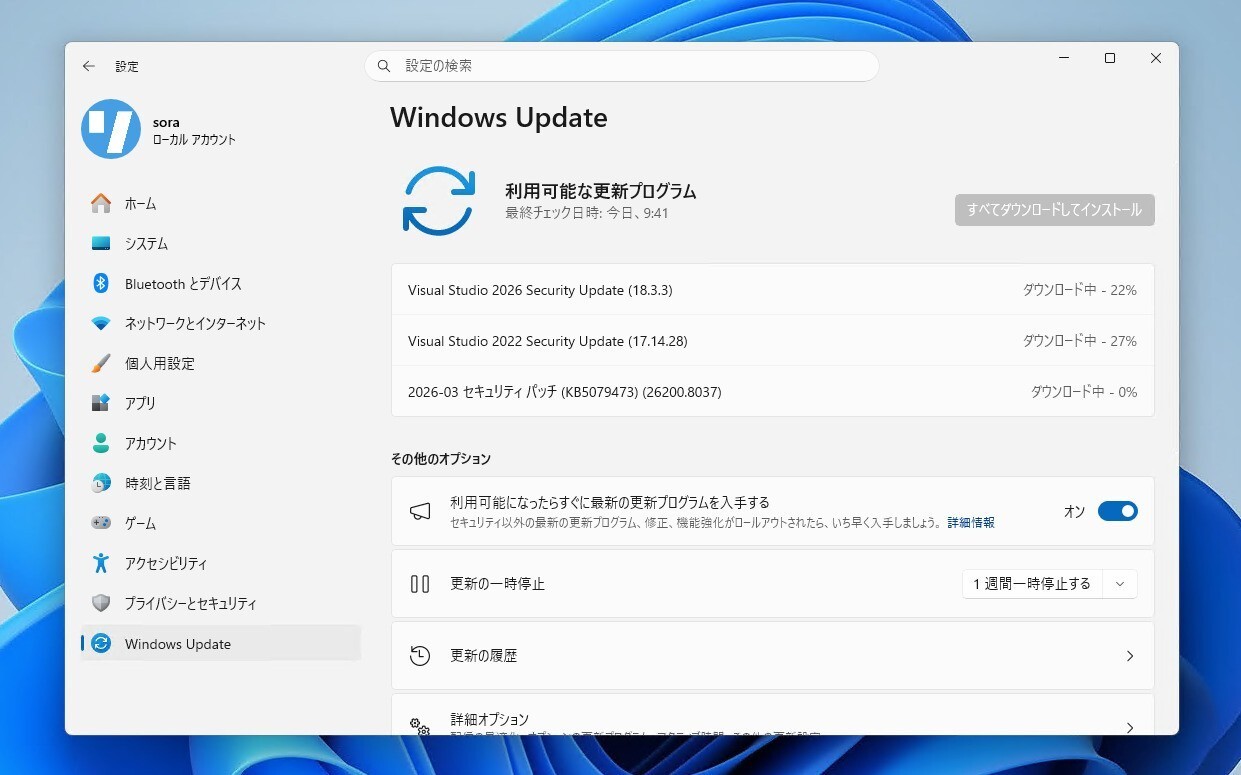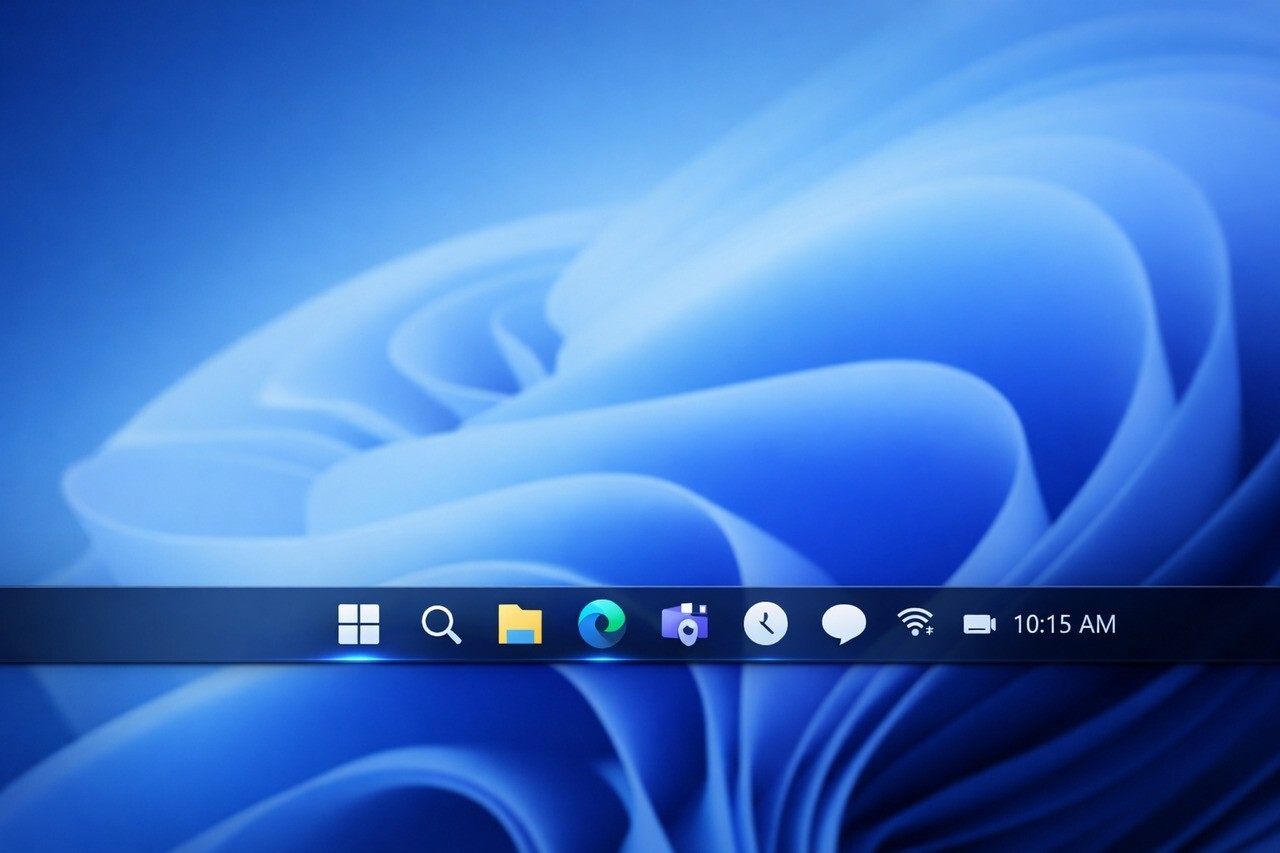

Microsoftは1月9日(現地時間)、Windows 11のWindows Insider ProgramのDev/Betaチャンネル向けの最新ビルド「Windows 11 Insider Preview Build 26220.7535」をリリースしました(Windows Blog)。
現在、DevチャネルとBetaチャネルが同じ25H2ベースのビルドを共有しているため、安定性を重視するユーザーはBetaチャネルへの切り替えが可能となっています。Devチャネルが将来的により高いビルド番号へ進むと、この切り替えウィンドウは終了します。Microsoftは「このウィンドウはまもなく閉じる」と強調しているため、切り替えを検討している方はこの機会に実行することをおすすめします。
Windows Insider Programの更新オプションでDev/Betaチャンネルを選択し、Windows 11のプレビュー版を使用しているユーザーは、Windows Updateを利用して最新版に更新することができます。
Build 26220.7535の新機能
Build 26220.7535では、NarratorがCopilotと連携し、画面上の画像・グラフ・UI要素をAIが詳細に説明できるようになりました。管理者向けの機能として、Copilotアプリのアンインストール制御機能(新ポリシー)が追加されています。
Windows Spotlightアイコンの刷新や、さまざまな不具合の修正も行われています。
リリースノートは以下の通りです。
New features gradually being rolled out with toggle on*
Bringing Copilot-powered image descriptions to Narrator
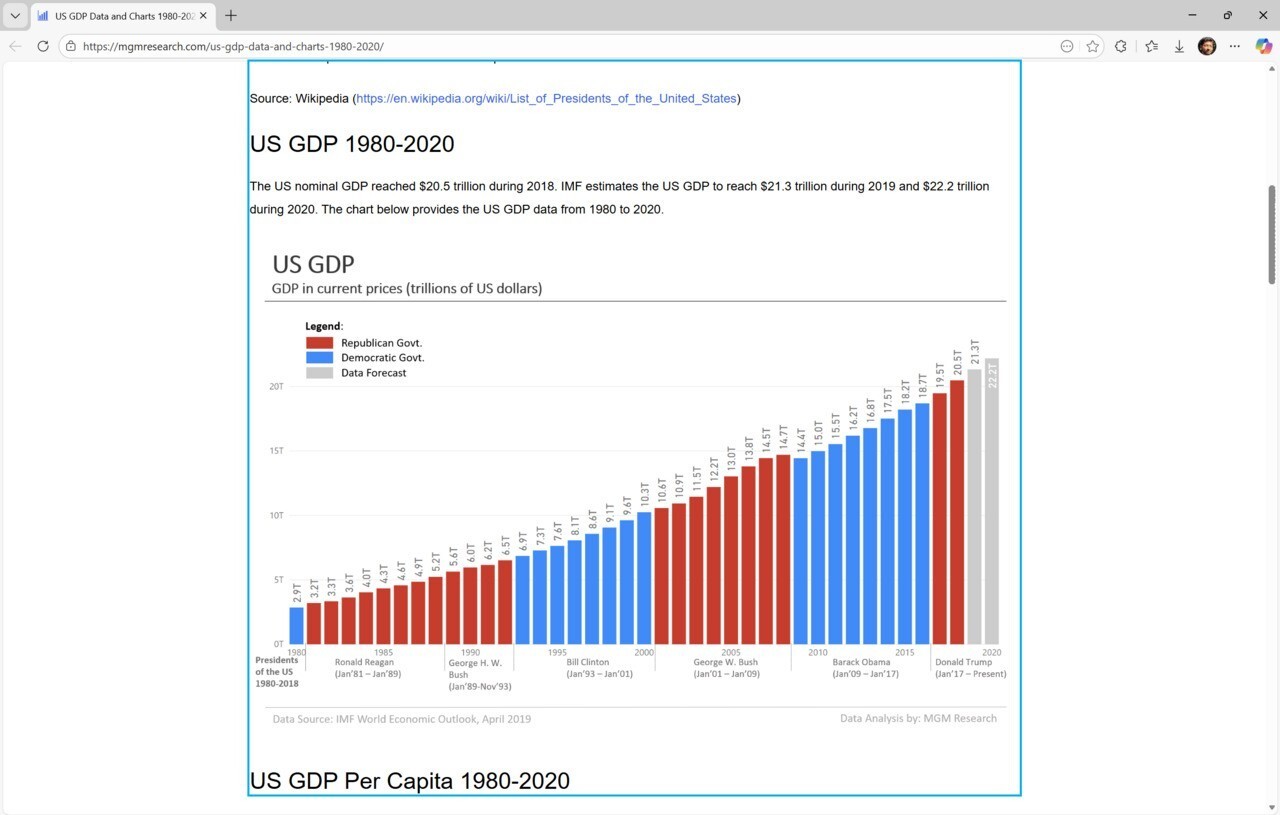
Last year, we introduced rich image descriptions in Narrator on Copilot+ PCs—making it possible for blind and low-vision users to hear detailed, AI-generated descriptions of images, charts, and graphs.
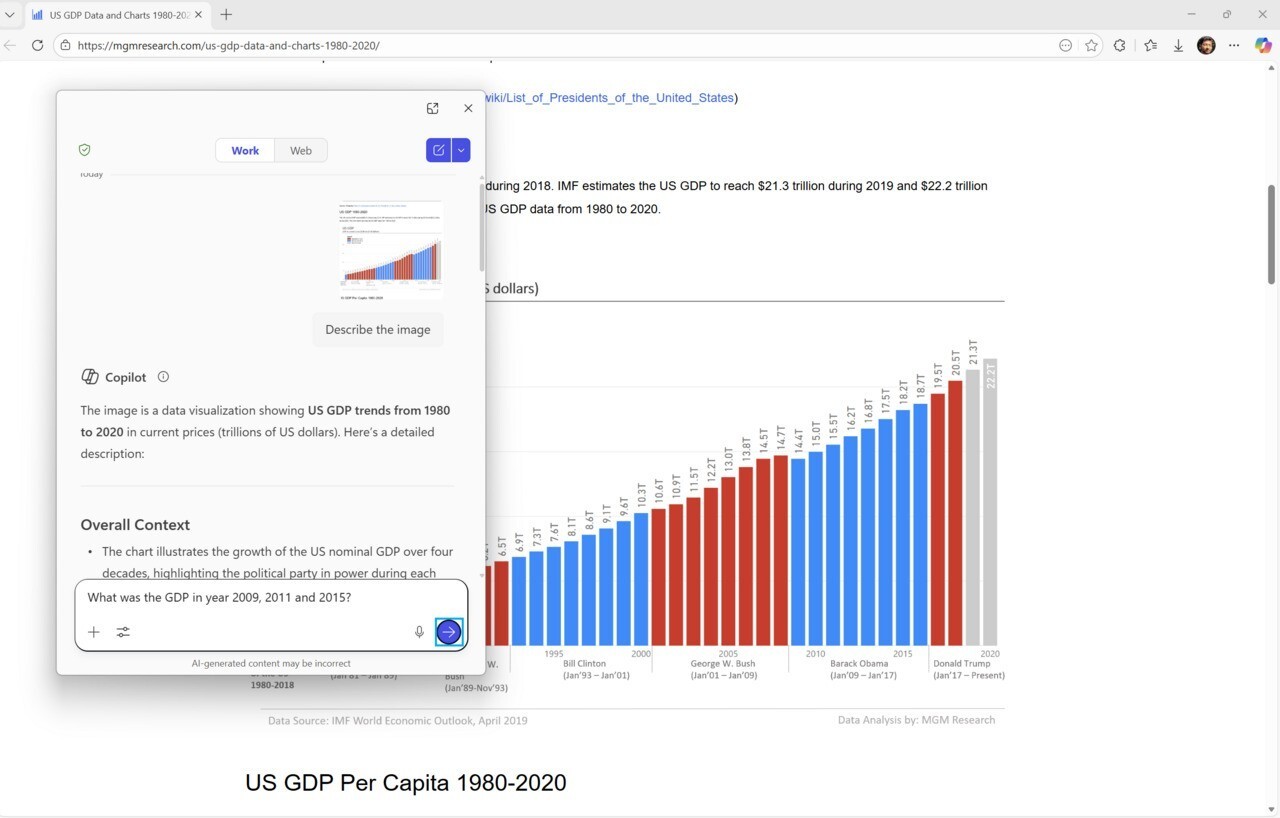
Narrator can now work with Copilot on all Windows 11 devices to further understand images and visual elements on your screen. You can press Narrator key + Ctrl + D to describe the focused image or press Narrator key + Ctrl + S to describe the full screen. Copilot opens with the image ready, allowing you to enter your own prompt and generate a description tailored to what you want to know. Importantly, the image is only shared after you choose to describe it. You remain in control at every step.
On Copilot+ PCs, Narrator continues to provide instant, on-device image descriptions using local AI. Press Narrator key + Ctrl + D/S, and Narrator immediately reads a rich description—highlighting people, objects, colors, text, numbers, and layout. When you want more detail or follow-up insights, simply select Ask Copilot to continue exploring.
This feature is not available in the European Economic Area (EEA).
FEEDBACK: Please file feedback in Feedback Hub (WIN + F) under Accessibility > Narrator.
Uninstalling Microsoft Copilot App on managed devices
Admins can now uninstall Microsoft Copilot for a user in a targeted way by enabling a new policy titled RemoveMicrosoftCopilotApp. It will apply for devices/users that meet the below conditions:
- Microsoft 365 Copilot and Microsoft Copilot are both installed
- The Microsoft Copilot app was not installed by the user
- The Microsoft Copilot app was not launched in the last 28 days
If this policy is enabled, the Microsoft Copilot app will be uninstalled, once. Users can still re-install if they choose to. This policy is available on Enterprise, Pro, and EDU SKUs.
To enable this policy, open the Group policy editor and go to: User Configuration -> Administrative Templates -> Windows AI -> Remove Microsoft Copilot App.
FEEDBACK: Please share your feedback in Feedback Hub (WIN + F) under Desktop Environment > Taskbar.
Changes and Improvements gradually being rolled out with toggle on*
[For Developers]
- We’re excited to share an enhancement to the Cross Device Resume capability that we announced earlier. Until now, app developers could integrate with Resume using a solution based on the Link to Windows app. We’ve now introduced an additional integration path leveraging the Windows Notification System (WNS). This additional option expands the scope of users to whom you can offer Resume capability, while delivering the same seamless experience on Windows. We invite developers to explore onboarding with this new capability alongside the existing integration method. Together, these options help maximize continuity across devices. Use WNS Notifications to implement Cross Device Resume (XDR) – Windows apps | Microsoft Learn.
[Windows Spotlight]
- The Windows Spotlight icon is getting refreshed. The new icon flight was started in late December for a small set of Insiders.
Fixes gradually being rolled out with toggle on*
[Start menu]
- Fixed an issue where the edge of the warning dialog shown when shutting down your PC while other users were still signed in was truncated by the edge of the Start menu.
[File Explorer]
- Fixed an issue which was causing explorer.exe to crash for some Insiders when invoking the context menu on the desktop recently.
[Input]
- Fixed an issue which could lead to a black flash when using a pen to ink in Snipping Tool.
[Print]
- Fixed an issue which could lead to two print dialogs appearing when you opened print instead of just one.
- Fixed the color of the close button the print dialog to be consistent with other windows.
- Fixed an issue where the text on the Printers and Scanners page in Settings could become truncated and unreadable.
[Windows Update]
- Fixed an issue which could lead to the Windows Update settings page hanging when loading.
Known issues
[Xbox full screen experience for PC]
- Some apps may behave unexpectedly when using FSE, particularly those that expect to be locked to a given size or launch additional windows.
[Taskbar & System Tray]
- We’re working on the fix for an issue which is causing the Start menu to not open for some Insiders on click, although it will open if you press the Windows key. This issue may also potentially impact the notification center (which you can open with WIN + N) and quick settings (WIN + A).
- We’re investigating an issue where for some Insiders apps aren’t showing in the system tray when they should be.
- We’re working on the fix for an issue in the latest builds where, when the taskbar is set to autohide, it might invoke before interacting with the bottom of the screen, blocking the use of apps in that area.
[Settings]
- [NEW] We’re working on the fix for an issue causing Settings to crash when interacting with audio devices.
[Bluetooth]
- We’re working on the fix for an issue causing Bluetooth device battery level to not show for some Insiders.
[Click to Do]
- We’re investigating an issue where the Microsoft 365 Copilot prompt box on selected images does not function if the Microsoft 365 Copilot app is not running.


詳細はこちらで確認可能です。