
Microsoftは2月20日(現地時間)、Windows 11のWindows Insider ProgramのCanaryチャンネル向けの最新ビルド「Windows 11 Insider Preview Build 28020.1619(KB5058499)」をリリースしました(Windows Blog)。
Canaryチャンネルで公開されるビルドは、将来の機能アップデートで追加される可能性のある、さまざまな新機能が先行して実装されています。プレビューチャンネルの中で最も不安定な可能性があり、提供されるドキュメントも限定的なものとなっています(例えば既知の不具合は掲載されないなど)。
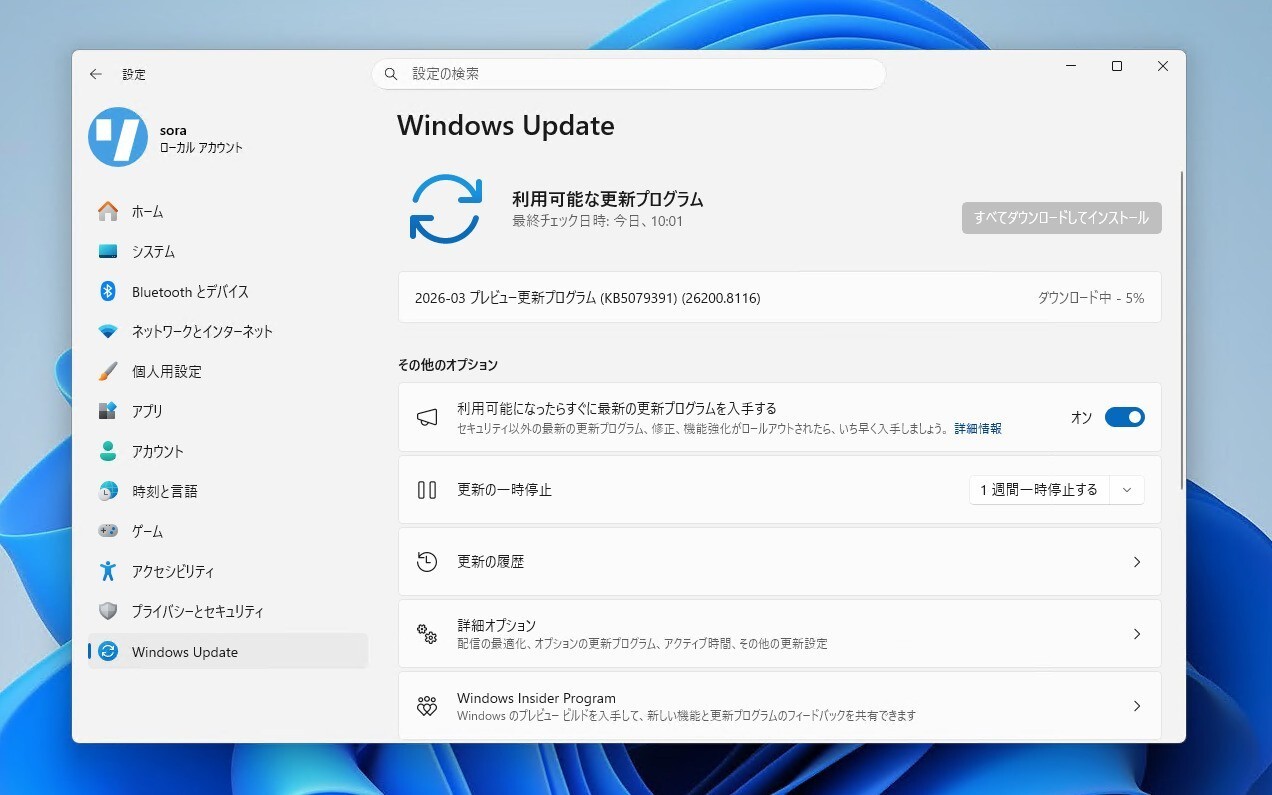
Windows Insider Programの更新オプションでCanaryチャンネルを選択し、Windows 11のプレビュー版を使用しているユーザーは、Windows Updateを利用して最新版に更新することができます。
Build 28020.1619の新機能
Build 28020.1619では、スマホとPCの連携機能「Cross‑Device Resume」が拡張され、さまざまな操作をPCで続行できるようになりました。ナレーターの改良や、設定エージェントの対応言語の大幅拡大(日本語含む)も行われています。
リリースノートは以下の通りです。
Changes and Improvements gradually being rolled out with toggle on*
[Cross Device Resume]
- This update expands the functionality of Cross‑Device Resume, which Microsoft first introduced in the May 2025 Windows non-security update (KB5058499). You can continue activities from your Android phone on your PC based on the apps and services you use, including resuming Spotify playback, working in Word, Excel, or PowerPoint, or continuing a browsing session.
- Vivo Android phone users can continue browsing from Vivo Browser on their PC.
- If you use an Android phone from HONOR, OPPO, Samsung, Vivo, or Xiaomi, you can resume online files that you opened in the Microsoft Copilot app on your phone and continue working on them on your PC. Files open in the corresponding Microsoft 365 app on your PC if it is installed. If the app is not installed, the files open in your default web browser. This feature does not support offline files stored only on your phone.
FEEDBACK: Please file feedback in Feedback Hub (WIN + F) under Devices and Drivers > Linked Phone.
[Personalize what Narrator announces]
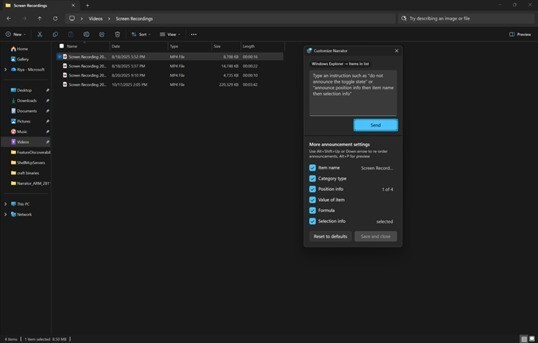
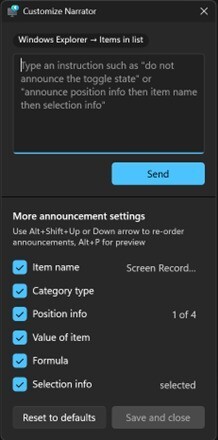
- Narrator now gives you more control over how it announces on‑screen controls. You can choose which details are spoken and adjust their order to match how you navigate apps. These settings apply throughout the app to help reduce extra speech and make Narrator easier to follow.
FEEDBACK: Please file feedback in Feedback Hub (WIN + F) under Accessibility > Narrator.
[Windows Hello]
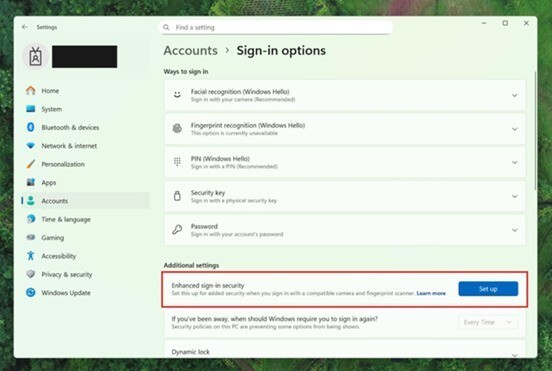
- Windows Hello Enhanced Sign-in Security Now Supports Peripheral Fingerprint Sensors: Windows Hello Enhanced Sign-in Security (ESS) is expanding to support peripheral fingerprint sensors in Windows 11. Previously, ESS was only available on PCs with built-in biometric sensors, but now Windows 11 PCs, including desktops and Copilot+ PCs, can benefit from the most secure sign-in experience Windows Hello has to offer. Just plug in a supported ESS fingerprint reader, head to Settings > Accounts > Sign-in options and follow the prompts to enroll.
FEEDBACK: Please file feedback in Feedback Hub (WIN + F) under Security and Privacy > Windows Hello Fingerprint.
[Voice Typing]
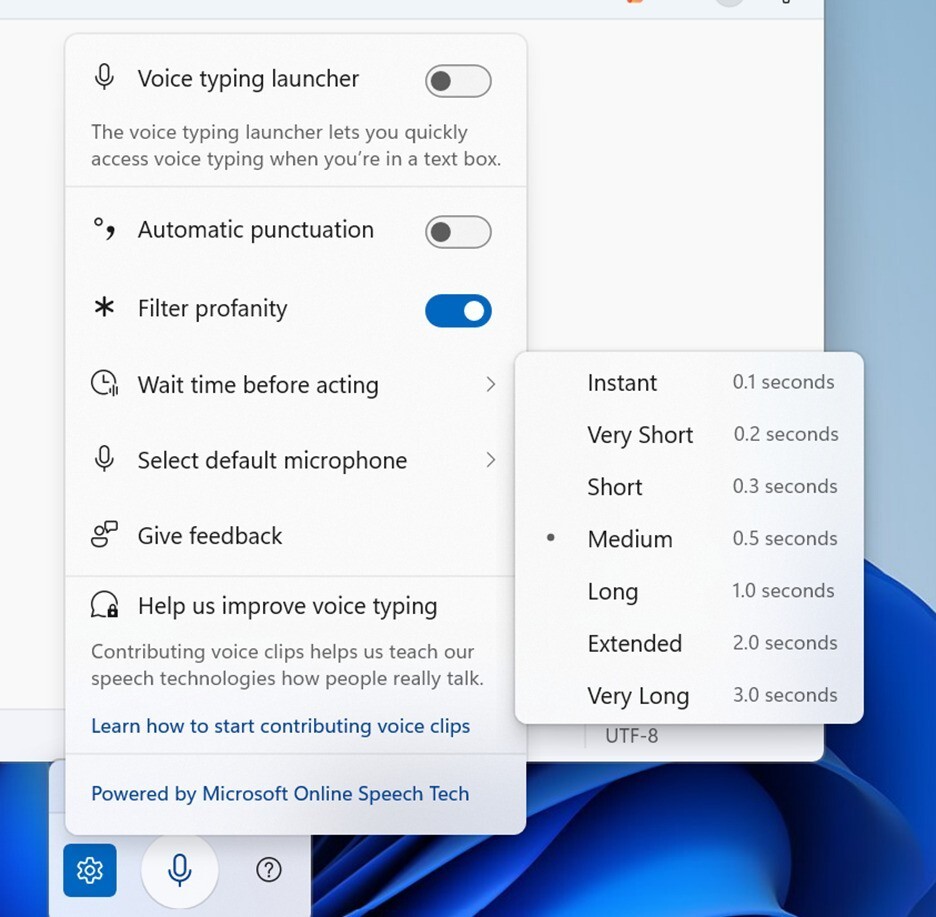
- We are introducing a new ‘Wait time before acting’ setting in Voice Typing, allowing users to configure the delay before a voice command is executed. This provides greater flexibility for users with varying speech patterns, enabling more accurate recognition whether speaking slowly or quickly. (Update: This is rolling out for all desktop types, not just Copilot+ PCs.)
[Voice Access]
- We’re introducing a more streamlined setup flow to make it even easier to get started with Voice Access. The redesigned flow helps download the right speech model for your language of choice; select your preferred input microphone & highlights what Voice Access can help you do on your PC.
[Settings Agent Language Expansion]
- Last September, we announced that Agent in Settings experience was expanded to include French in Dev and Beta Now, the languages supported by the Settings Agent continue to be expanded. The following locales and languages are supported with this release:
Current:
- English: en-gb, en-us
- French: fr-fr, fr-ca
New:
- German: de-de
- Portuguese: pt-br, pt-pt
- Spanish: es-es, es-mx
- Korean: ko-kr
- Japanese: ja-jp
- Hindi: hi-in
- Italian: it-it
- Chinese (Simplified): zh-cn
[General]
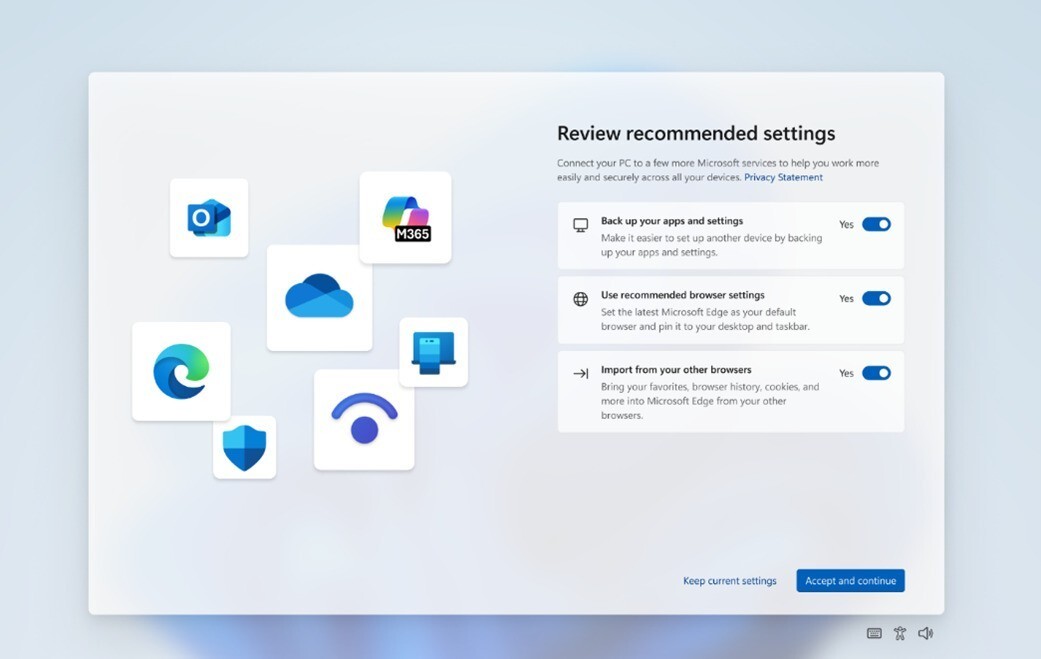
- Some Windows Insiders will see a refreshed SCOOBE screen (Second Chance Out of Box Experience) for reviewing recommended settings on your PC. This redesigned screen is meant to be more intuitive and streamlined, allowing you to choose the recommended settings you want for your PC without having to navigate through multiple setup screens. If you see this screen, let us know if you have any feedback via Feedback Hub.
公式ブログには細かな変更内容がリストアップされていますので、インストールする前に確認することをおすすめします。